Logo & branding
Create a welcome that feels unmistakably yours.
Integration guide


Create thoughtful, personalized welcome letters that help guests feel expected, welcomed, and genuinely looked after from the moment they arrive.
Each property includes its first three bookings, with no credit card required.
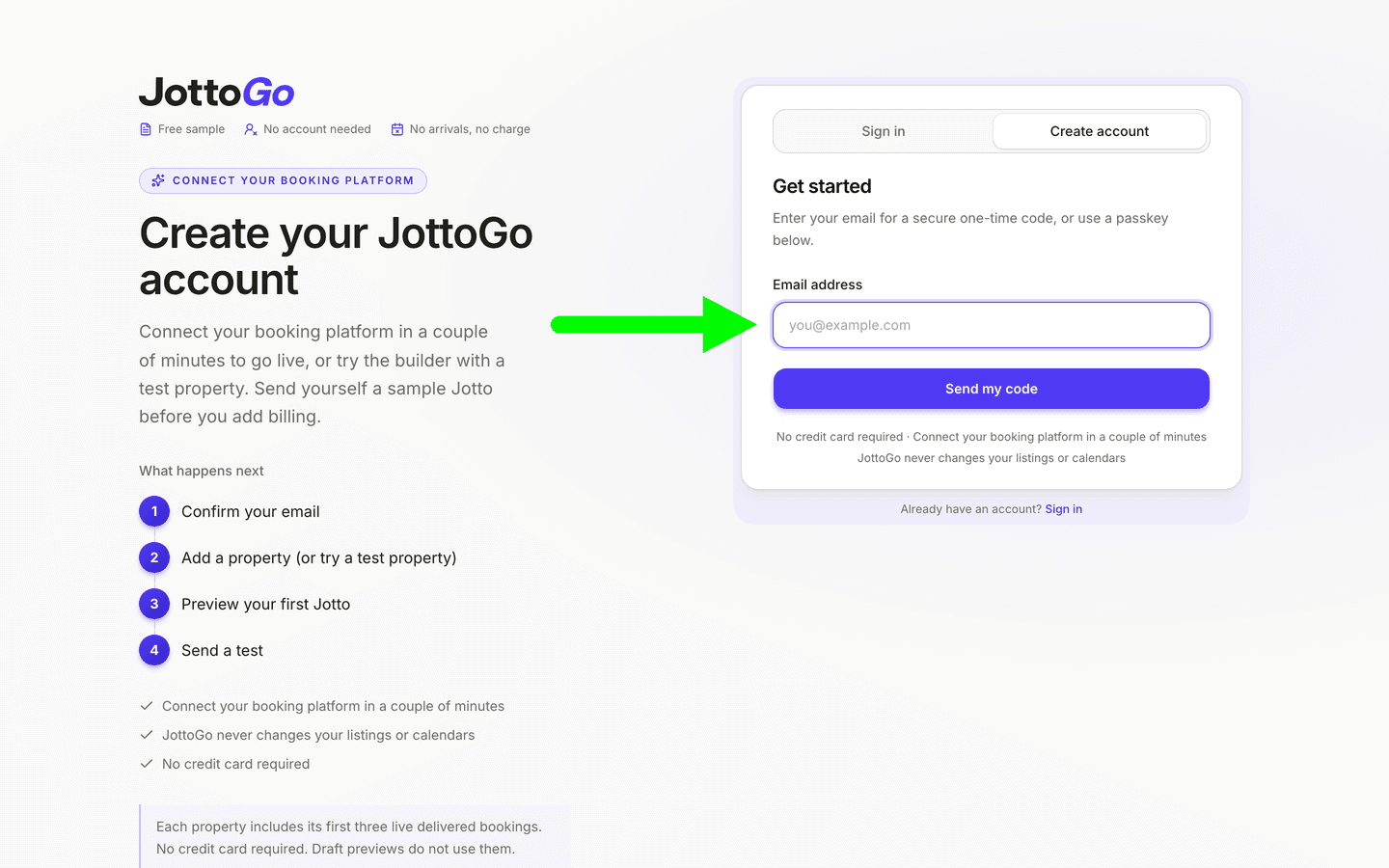
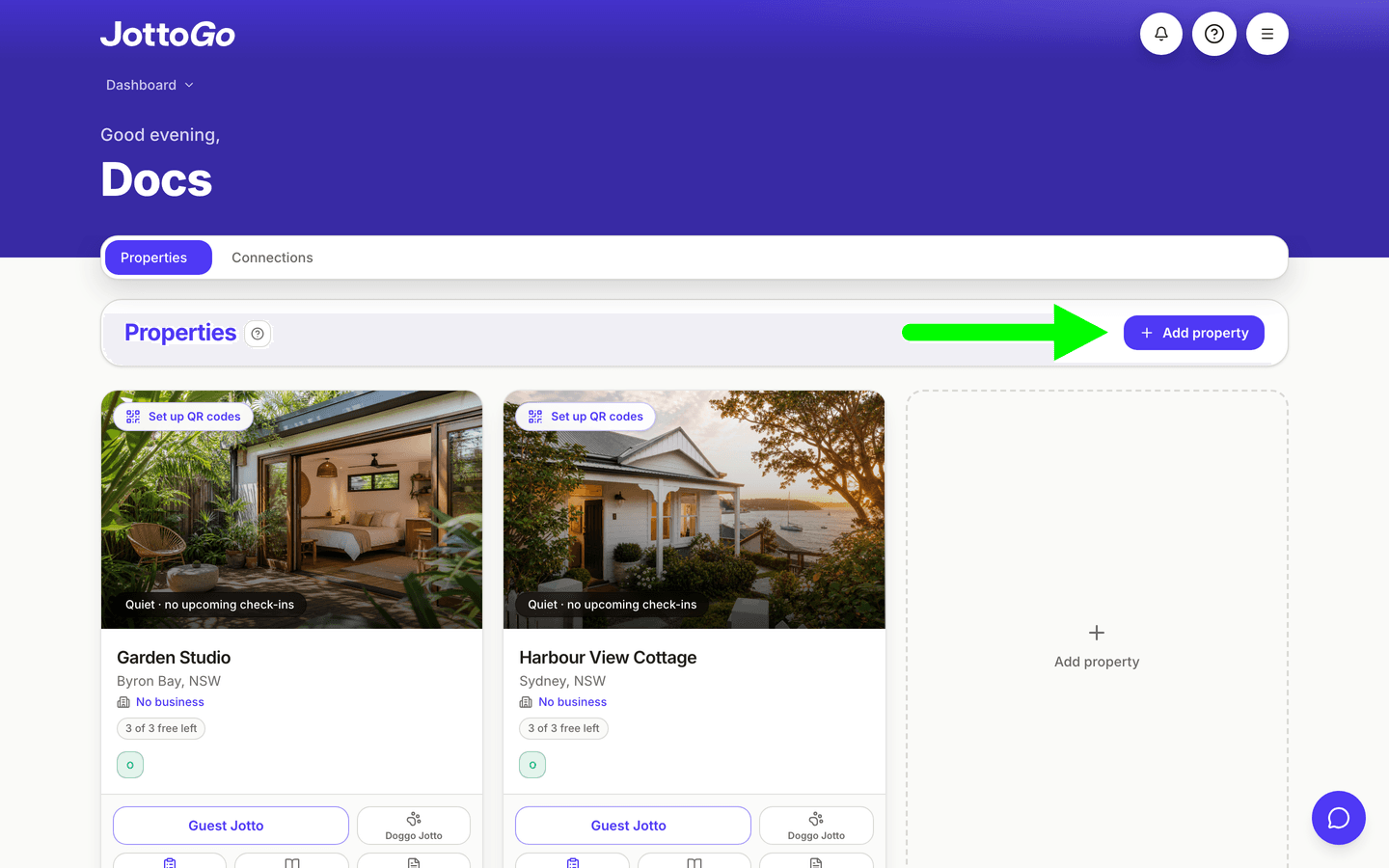
On your dashboard, tap + Add property in the Properties section. If your portfolio is empty, use the dashed Add property tile in the empty state. (Alternatively: Dashboard → Properties → Connections.)
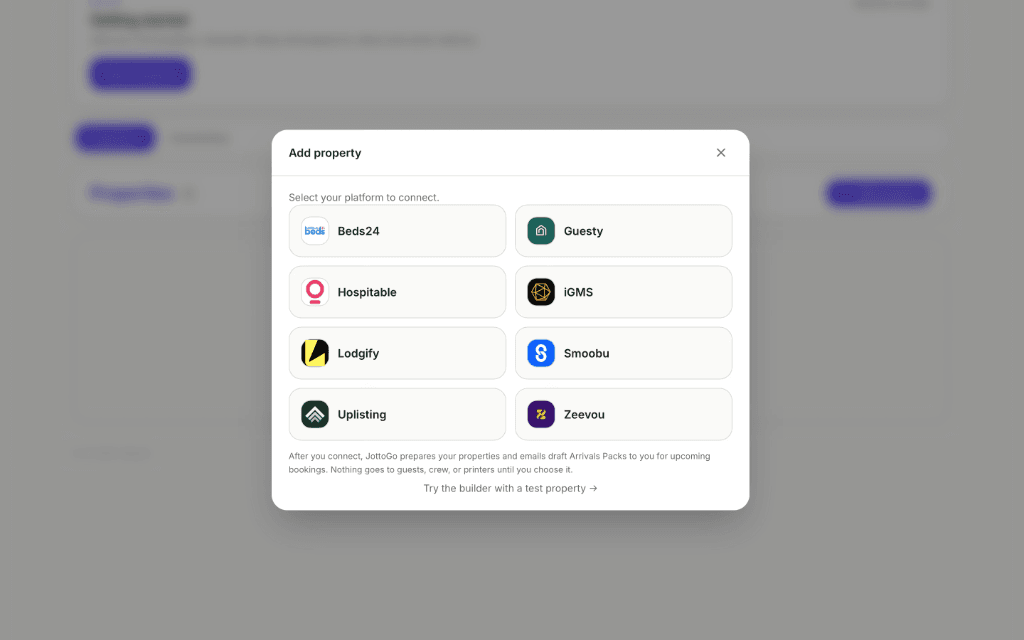
Tap the Smoobu logo.
Tap Open Smoobu to sign in, then open Advanced → API Keys from the main menu. Advanced sits at the bottom of the menu, below the divider.
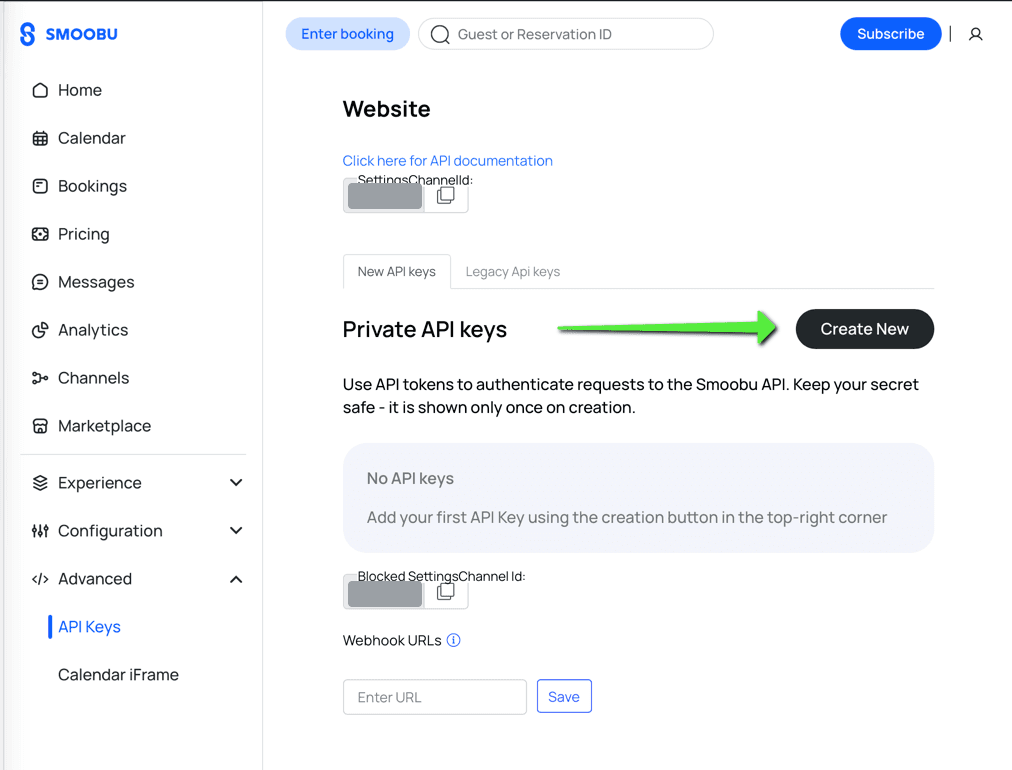
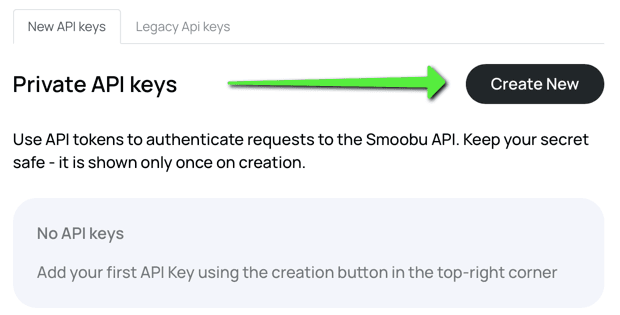
On the API Keys page, click Create New.
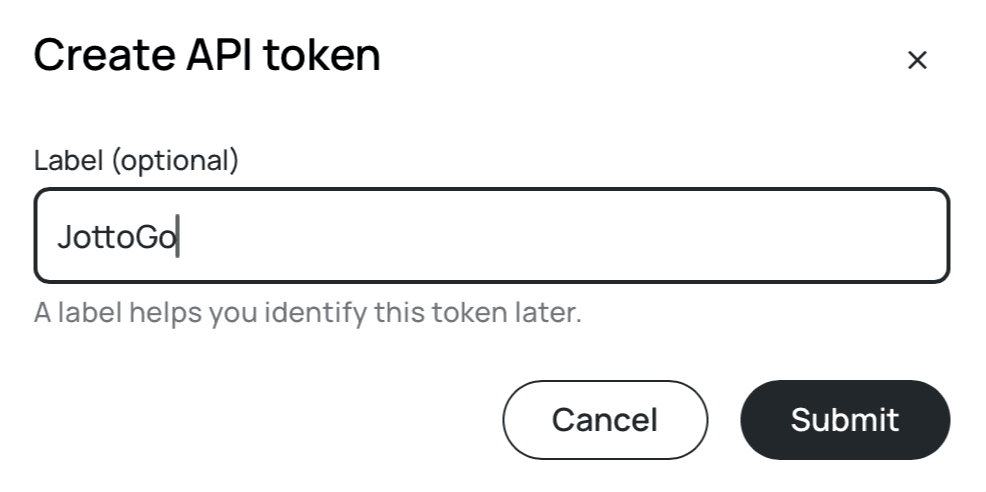
Smoobu asks for an optional name so you can recognize the token later. JottoGo is a good one. Then click Submit. This name is only for your own reference and is not one of the values you copy.
Smoobu shows a Token created dialog with two values: a Label, which starts with usr_live_, and a Secret. Copy both. Smoobu shows the Secret only once and cannot show it again. If you lose it, create a new token and use that instead.
Back in JottoGo, paste the Label and the Secret into the matching fields and tap Connect Smoobu. Choose the listings to import and tap Import on your first property.
The moment you import a property, Automatic Setup starts preparing it in the background (greeting, sign-off, delivery schedule, and safe Crew To Do defaults), built from the property and booking facts available. There is no questionnaire to finish. Review and adjust everything from the property card and the Guest Jotto builder, and add the details only you know, like Wi-Fi, whenever it suits.
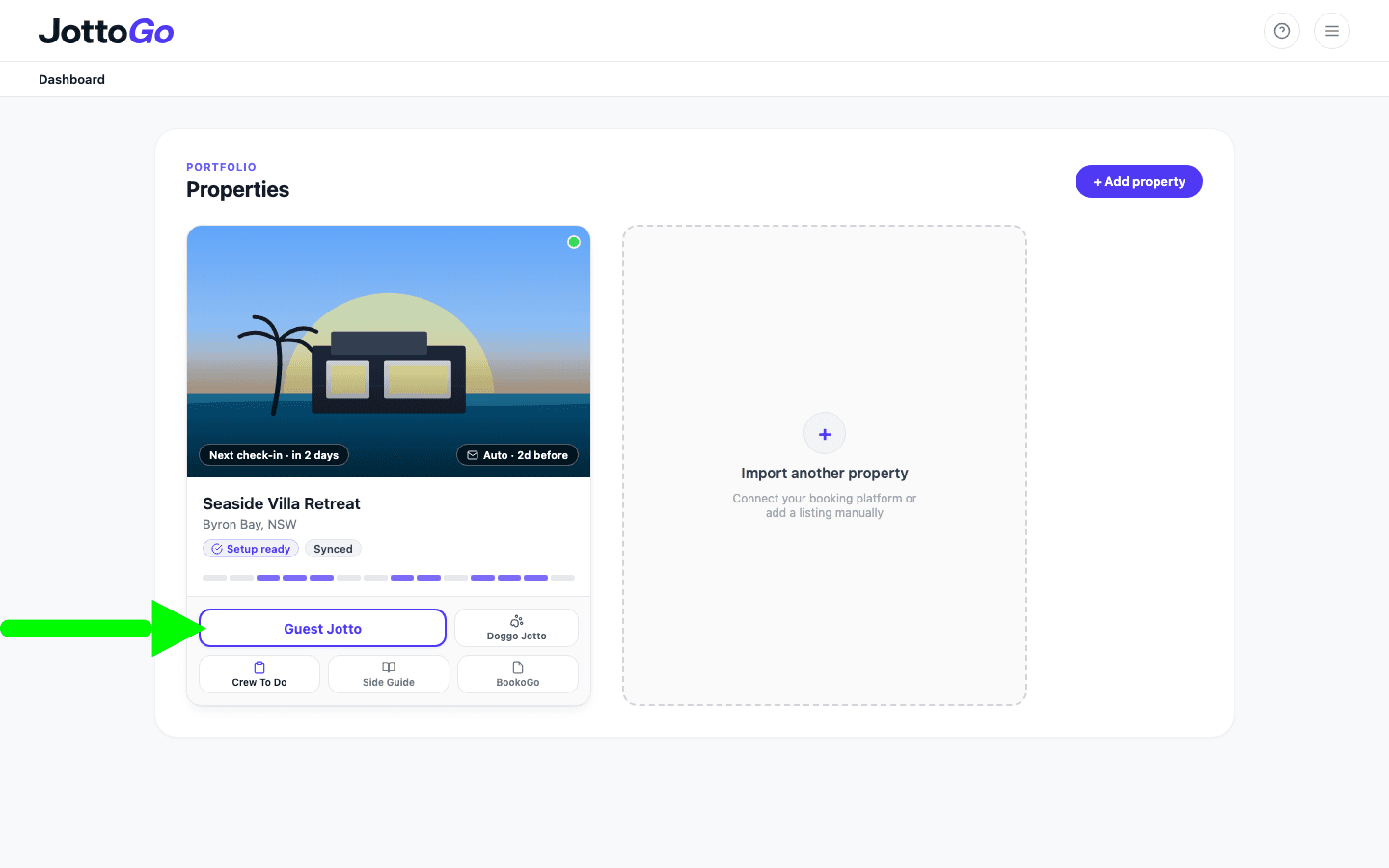
That's it. There is nothing more to finish. Once real arrivals are on the calendar, JottoGo emails you example Arrivals Packs to review, personalized for your actual guests. Your delivery schedule is already prepared, so you and your crew (if set up) receive Jottos automatically for each upcoming booking.
Automatic Setup gets you live immediately. Refine anything later in the Guest Jotto builder.
Create a welcome that feels unmistakably yours.
Set the tone for a warm arrival from the very first line.
Answer common questions before guests need to ask.
Help guests discover your guidebook, local recommendations and extras.
Have each Guest Jotto waiting before your guests arrive.
Deliver every Guest Jotto at just the right moment.
Keep everyone preparing your property on the same page.
Help your team deliver thoughtful touches consistently, every stay.
Build goodwill with guests by welcoming every member of the family.
Once Automatic Setup has prepared your property, JottoGo quietly takes care of the rest.
Each new booking is automatically imported from Smoobu, personalized using your guest’s reservation details and message history, then delivered according to your chosen schedule.
You’re ready to go from day one. As you become familiar with JottoGo, you can continue refining your Guest Jotto with your own branding, connect a printer for automatic printing, personalize Doggo Jotto for four-legged guests, and tailor Crew To Do (your printable prep checklist with guest-specific reminders and your own property tasks) to suit the way your team works.
JottoGo uses booking details and guest messages only to personalize welcome letters. Guest information is retained for the duration of the stay and automatically removed at 11:59 PM on checkout day in the property's timezone, long enough to personalize and deliver. After that we keep only a one-way code made from the guest's phone number or email, so you can be told when they return.
Yes. Automatic Setup gets every property started for you, then you can continue refining your Guest Jotto over time with your own branding, welcome, Wi-Fi details, QR codes and other thoughtful touches.
JottoGo looks for details your guests have already shared (celebrations, traveling companions, dietary preferences, and pets) to create a welcome that feels thoughtful and builds goodwill from the moment they arrive.
Guest Jottos help guests feel expected, welcomed and genuinely looked after. Those thoughtful touches build goodwill at arrival, which can make guests more forgiving of small issues and more likely to remember their stay for the right reasons.
Yes. Any confirmed booking imported through Smoobu can generate a Guest Jotto. Personalization improves as guests share more information through Smoobu messages.
Yes. Invite your cleaners or co-hosts to your Crew Portal so they can preview and print Guest Jottos. You can also include Crew To Do, a printable preparation checklist with guest-specific reminders and your own property tasks.
Yes. Add an email-to-print address to your Automation and JottoGo can send each Guest Jotto to your property printer on the schedule you choose.
Each property includes its first 3 issued bookings, with no credit card to start. Previewing a pack does not use them. After that you pay once per booking, with a monthly cap on every property plus applicable tax (on per-booking pricing, quiet months cost nothing), or save up to 50% with a flat per-property monthly or annual plan. Every feature is included from the first booking.
JottoGo imports each Smoobu property separately, including combined and lock-off listings. You can customize each Guest Jotto so it matches the personality and practical details of that property.
Yes. Pause or edit any Automation schedule from your dashboard without disconnecting your booking platform.
Smoobu signs every request with a pair: a Label, which identifies the token, and a Secret, which proves the request came from JottoGo. Both go into JottoGo. Smoobu shows the Secret only once, on the Token created dialog, so copy it before you close that window.
Smoobu cannot show an existing Secret again. Create a second token on the same API Keys page and use that one instead. You can delete the token you could not finish with.
JottoGo added it when you connected. It is how Smoobu tells us about a new or changed booking straight away instead of waiting for the next sync. Disconnecting Smoobu in JottoGo removes it again. If you revoke the API token in Smoobu first, we can no longer reach your account to tidy up, so delete the webhook yourself on the same screen.
No. JottoGo uses the signed keys created under Advanced → API Keys. Smoobu is retiring the older single key found under Settings → Profile, so the token pair is the one to create.