Integration guide


Connect iGMS to JottoGo
Connect iGMS to JottoGo, import a property, and check that your bookings sync.
Connecting iGMS
Open iGMS in JottoGo
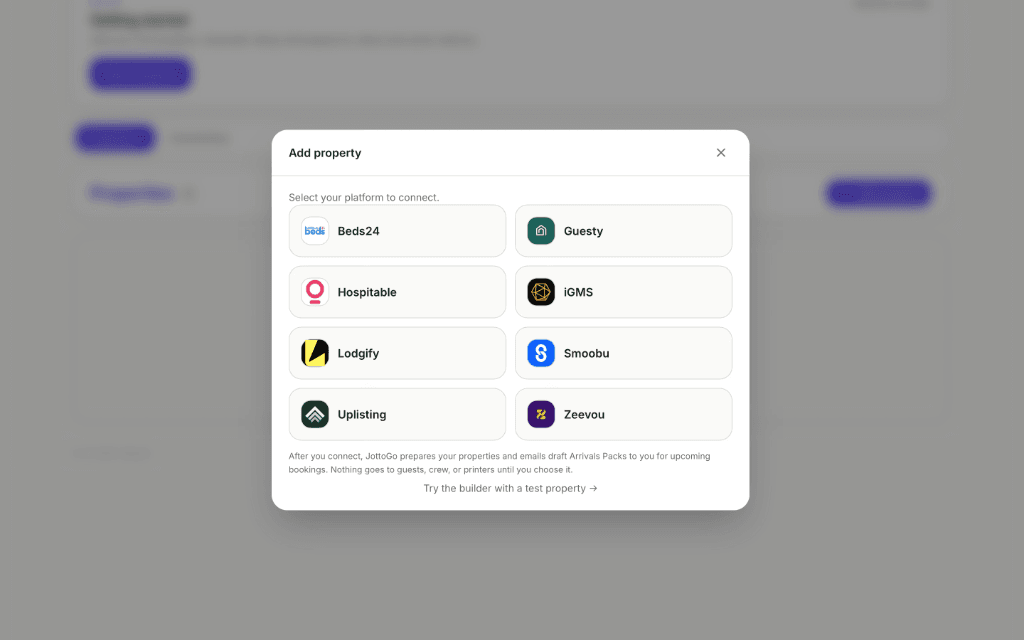
Sign in to JottoGo. On your dashboard, select Add property, then choose iGMS from the platform grid.
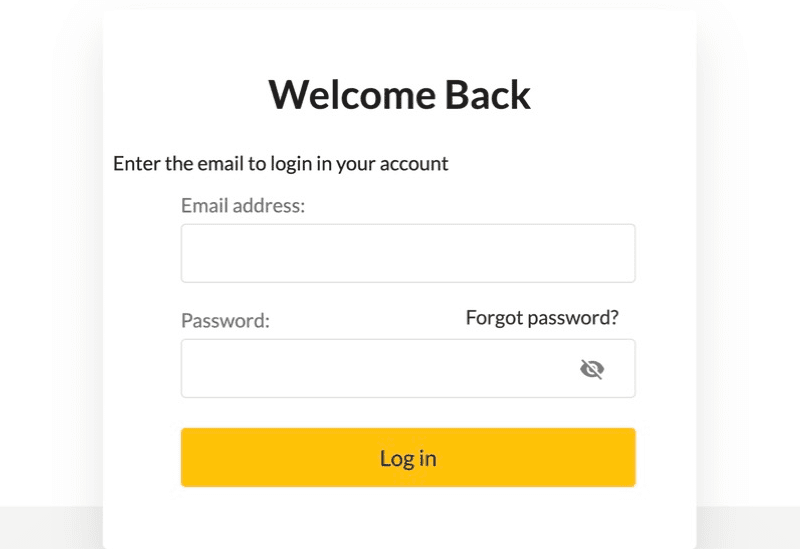
Sign in to iGMS
When iGMS opens, sign in to the account that contains your properties.
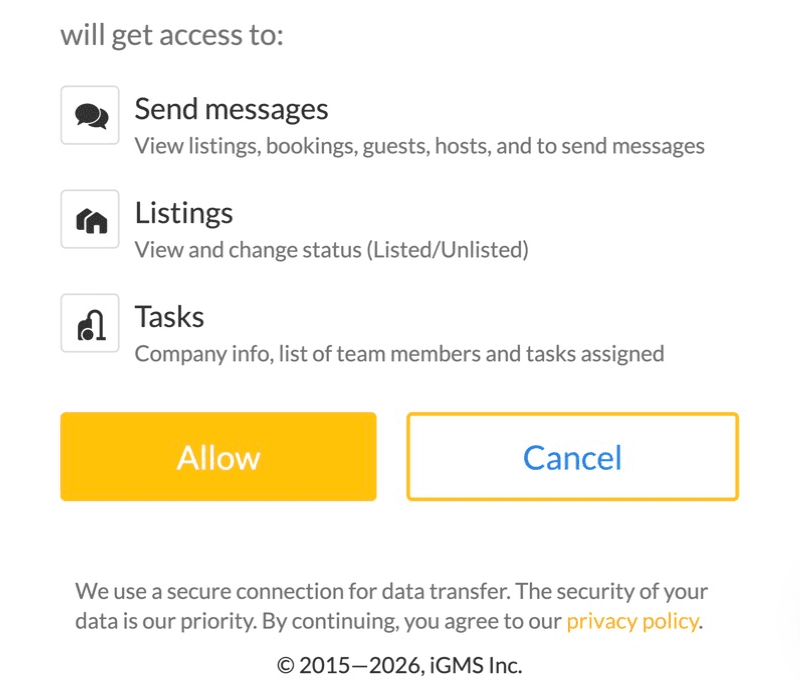
Allow the connection
Review the requested permissions, then select Allow. You will return to JottoGo.
Import your property
Choose a listing and select Import. Enter or confirm its full address when prompted, then complete the import. Repeat for any other properties you want to add.
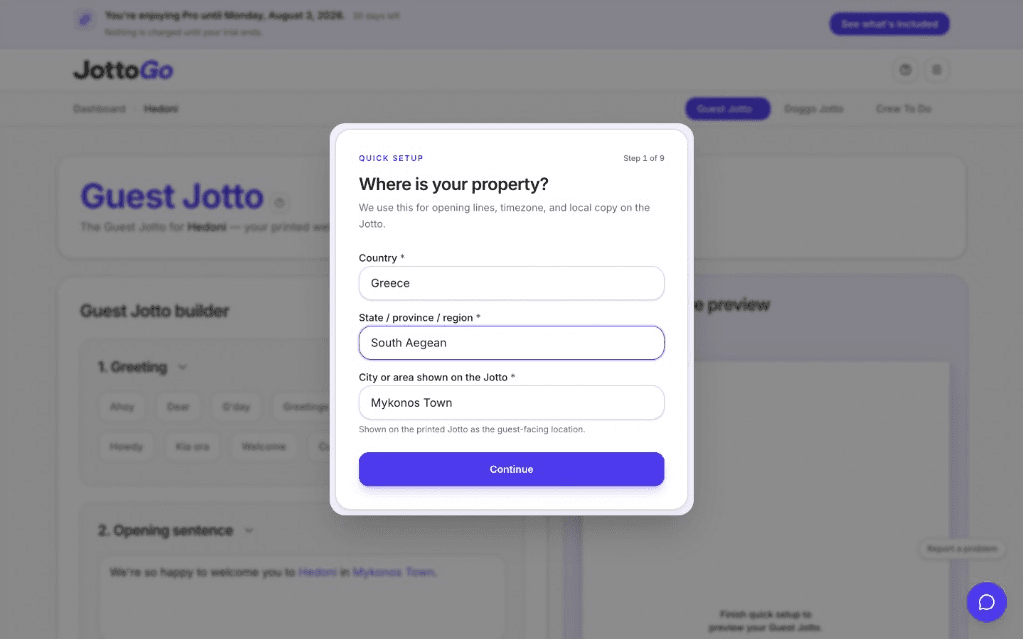
Automatic Setup prepares your property
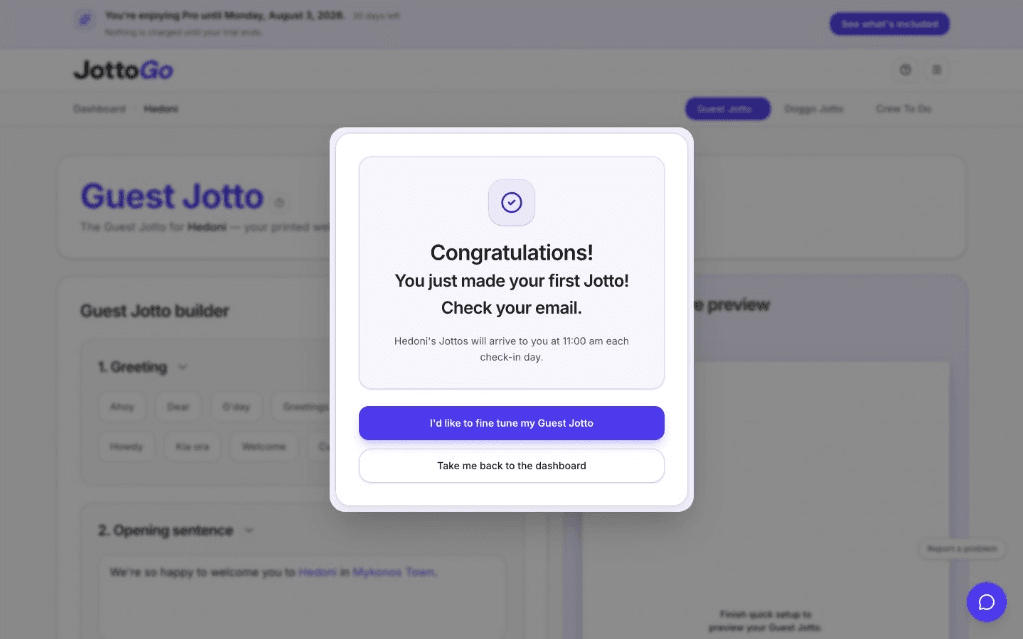
The moment you import a property, Automatic Setup starts preparing it in the background. Open the property to review its details and delivery schedule.
Check your bookings
Open the imported property and check its bookings. Compare an upcoming booking with iGMS, including the guest name, stay dates and guest count.
To refresh bookings, select Sync in the property’s Booking sync section. If the property has no upcoming bookings in iGMS, an empty list is expected.
Data we read from iGMS
Read
- Properties and listing details (name, location, photos)
- Confirmed bookings (guest names, stay dates, guest counts, channel)
- Guest profile fields on bookings
- Guest message threads
- Booking updates and cancellations
Written back
- None. JottoGo does not write data back to iGMS
JottoGo uses booking details and guest messages only to personalize welcome letters. Guest information is retained for the duration of the stay and automatically removed at 11:59 PM on checkout day in the property's timezone, long enough to personalize and deliver. After that we keep only a one-way code made from the guest's phone number or email, so you can be told when they return.
Frequently asked questions
Why can’t I select iGMS in JottoGo?
iGMS is currently in development. If you have been invited to test it, sign in with the email address used for your invitation. Contact JottoGo Support if access is missing.
Why are no properties available to import?
Check that you connected the correct iGMS account and can open its properties in iGMS. If iGMS shows locked controls, contact iGMS Support. If JottoGo says all listings are already imported, return to your dashboard to open them.
What if the connection fails?
Start again from Add property in JottoGo and approve a fresh connection. If it fails again, contact JottoGo Support with the error message shown.